
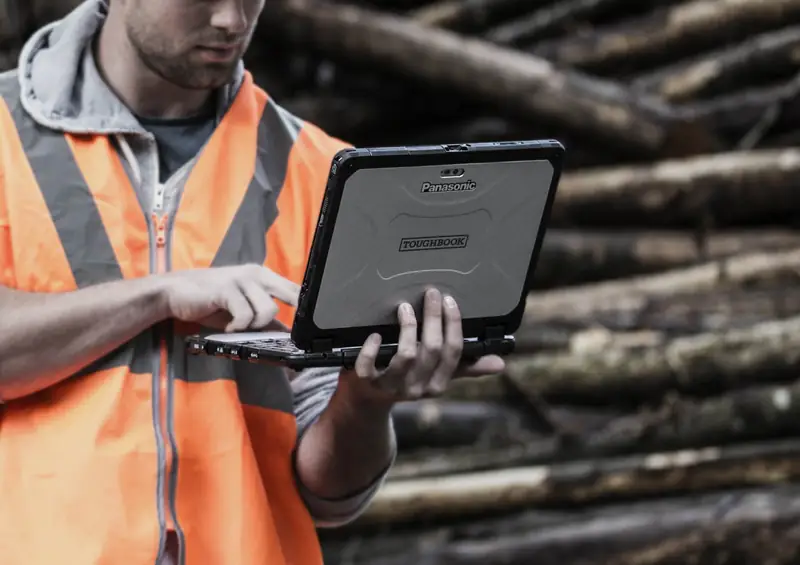
Every Panasonic Toughbook has a setup screen Panasonic calls the Setup Utility, what most people call the BIOS. It's where you change the boot order, turn ports and radios on or off, and pick a USB drive or DVD to start from. The key is almost always the same, but timing, Windows fast startup and keyboard-less tablets trip people up. Here's how to get in on each popular model, using Panasonic's own manuals. See sources.
The short answer
- Open the BIOS: turn the computer on and press F2 (or Del) while the black "Panasonic" boot screen is showing.
- If the Panasonic screen doesn't appear: hold down F2 or Del, then turn the computer on.
- Boot from a USB drive or DVD once: open the Setup Utility, go to the Exit menu, choose your drive under Boot Override and press Enter. The normal boot order is left as it was.
- On a tablet with no keyboard: touch the top left corner of the screen during the Panasonic screen (FZ-G1), or start the Setup Utility from Windows, as shown below.
Keys by model
| Model | Open the Setup Utility (BIOS) | Start from another drive once |
|---|---|---|
| Toughbook CF-33 12" fully rugged 2-in-1, from $599 | F2 or Del during the Panasonic screen. Without the keyboard, use a tablet button or start it from Windows. | Press Esc soon after the Panasonic screen appears to open the Boot Menu (Boot Popup Menu must be enabled), or use Boot Override. |
| Toughbook CF-54 14" semi-rugged laptop, from $599 | F2 or Del during the Panasonic screen | Exit menu, Boot Override |
| Toughbook CF-53 14" semi-rugged laptop, from $449 | F2 or Del during the Panasonic screen. In Fast boot mode, hold F2 or Del while turning it on. | Exit menu, Boot Override. The boot screen offers F12 for a network (LAN) boot. |
| Toughbook CF-31 13.1" fully rugged laptop, from $399 | F2 during the Panasonic screen | Exit menu in the Setup Utility |
| Toughbook CF-19 10.1" fully rugged convertible, from $499 | F2 or Del during the Panasonic screen | Exit menu, Boot Override |
| Toughbook CF-52 15.4" semi-rugged laptop, from $449 | F2 during the Panasonic screen | Exit menu in the Setup Utility |
| Toughpad FZ-G1 10.1" fully rugged tablet, from $449 | Touch the top left corner of the screen several times during the Panasonic screen | Touch Exit, then double-touch your drive under Boot Override |
Keys are from Panasonic's manuals for the CF-33, CF-54 (mk1), CF-53, CF-19 (mk8) and FZ-G1 (mk1), and from our own step-by-step guides for the CF-31 and CF-52. If a key doesn't respond on another mark of the same model, check that mark's manual or ask us.
When F2 doesn't work
- Windows fast startup is on. Panasonic's manuals warn that with fast startup enabled, the Setup Utility can't be started by pressing F2 or Del during startup. Choose Restart instead of Shut down, then press F2, or use the Windows route below.
- You're only using an external monitor. The Panasonic screen may not show. Press F2 or Del several times as soon as the computer starts.
- You're asked for a password. A supervisor or user password set in the BIOS has to be entered first. With only the user password, Panasonic notes that some Exit menu items, including Boot Override, are locked.
- You pressed it too late. If Windows starts loading, you missed it. Restart and tap F2 from the moment you press the power switch.
Open the BIOS from Windows
On Windows 8, 10 and 11 models you don't need the startup key at all. Panasonic's manuals for the CF-33, G2 and FZ-G1 give this route:
- Open Settings and click Restart now under "Advanced startup."
- Click Troubleshoot, then Advanced options, then UEFI Firmware Settings, then Restart.
- The computer restarts into the Setup Utility.
This is the easiest way in on a tablet without its keyboard, and it works even when fast startup is on.
Tablets without a keyboard
- Toughbook CF-33: the tablet buttons stand in for keys during startup. Panasonic's button table lists one button as F2 and another as F12 "when launching the Setup Utility." Inside the Setup Utility you can use the pen or touch.
- TOUGHBOOK G2: the A1, A2 and rotation lock buttons each have a "Preboot KeyBinding," the key they act as during startup, set under Tablet Button Configuration in the Setup Utility. If you're not sure how yours is set, use the Windows route above.
- Toughpad FZ-G1: touch the top left corner of the screen during the Panasonic screen. If that screen doesn't appear, turn the tablet on while touching the corner.
A USB keyboard plugged into the tablet works too, and is the simplest choice for long BIOS sessions.
Common reasons to open it
- Reinstalling Windows. On the CF-19, CF-31, CF-52 and CF-53, the recovery partition is started from the Setup Utility's Exit menu. See our step-by-step guide for the CF-31, CF-19, CF-52 or CF-53.
- Starting from a new drive. After an SSD swap, Boot Override or the boot order lets you start from a USB installer. See our SSD upgrade guide and memory guide.
- Finding the serial number when the label is worn. Our repair form asks for it.
- Turning ports and radios on or off, such as the wireless LAN or the touchscreen.
Not sure which mark you have? See Toughbook generations explained. Our refurbished Toughbooks ship tested, with a genuine copy of Windows installed. For help choosing one, request a quick quote.
Sources
- Panasonic: CF-33 Series Operating Instructions, Reference Manual (F2 or Del, fast startup note, Esc for the Boot Menu with Boot Popup Menu enabled, tablet buttons as F2 and F12 at startup, UEFI Firmware Settings route)
- Panasonic: FZ-G2 Series Operating Instructions, Reference Manual (UEFI Firmware Settings route; Preboot KeyBinding for the A1, A2 and rotation lock buttons)
- Panasonic: CF-54 Operating Instructions, Basic Guide (F2 or Del during the Panasonic screen, or hold it while turning on; Boot Override in the Exit menu)
- Panasonic: CF-53 Reference Manual, Setup Utility (F2 or Del; external display note; Fast boot mode; Boot Override; "Press F2 for Setup / F12 for LAN"; password limits)
- Panasonic: CF-19 (mk8) Operating Instructions, Basic Guide (F2 or Del; Boot Override in the Exit menu)
- Panasonic: FZ-G1 Operating Instructions (touch the top left corner during the Panasonic screen; Boot Override; UEFI Firmware Settings route)
- Panasonic: CF-C2 Reference Manual, Setup Utility (with fast startup enabled, F2 or Del doesn't work during startup)
- CF-31 and CF-52: our own recovery partition guides in the help center (F2 on the Panasonic screen, Exit tab).