
Follow these 9 steps from our Toughbook technicians, with a photo of each one, or watch the video.
Reinstalling Windows to the whole hard disk erases everything on it, so back up any files you need first. Keep the AC adapter connected until the process is complete.
Watch the video
Use recovery partition
Steps
-

1Turn on the computer and open the BIOS
Press F2 on the "Panasonic" screen to open the BIOS.
-

2Go to the "Exit" tab and choose "Repair computer"
Use the arrow keys to navigate the BIOS.
-

3Allow the computer to load files
This may take a few minutes.
-

4Select "Reinstall Windows"
Click Next.
-
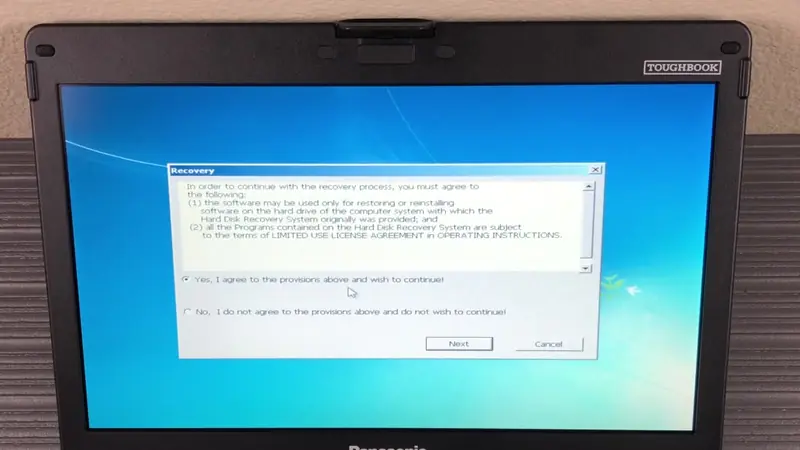
5Select "Yes, I agree..."
Click Next.
-

6Select "Reinstall Windows to whole Hard Disk..."
Click Next.
-

7Click Yes
Click No if you do not wish to continue.
-

8Choose the 32-bit or 64-bit version of Windows
64-bit is recommended for computers with 3GB or more of RAM. Click Yes.
-

9Allow the computer to finish the process
This may take a while. Do not turn off the computer until it is complete.
Stuck, or not sure a part fits your unit? Ask our technicians; we support every Toughbook we sell. Need memory, a drive, a keyboard or a battery? Request a quick quote.
More on the Panasonic Toughbook CF-53: Operating Systems.