
Follow these 11 steps from our Toughbook technicians, with a photo of each one, or watch the video.
What you'll need
- Phillips-head screwdriver
- Pry tool
- Double-sided adhesive
Watch the video
Install emissive keyboard
Steps
-
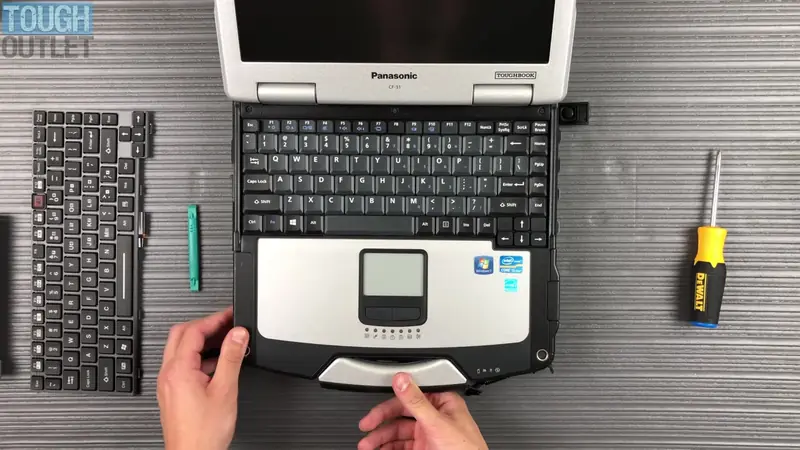
1Disconnect all power sources
This includes the AC adapter and the battery.
-

2Remove the 3 screws from the keyboard bracket
Use a Phillips-head screwdriver.
-

3Gently remove the keyboard bracket
Use a pry tool.
-

4Gently remove the keyboard as flat as possible
Do not over-bend the keyboard. Apply heat if needed to loosen the adhesive.
-

5Remove the keyboard ribbon cover
Use a Phillips-head screwdriver.
-

6Remove the cover and unlock the keyboard ribbon locks
Use any tool; a pry tool is recommended.
-

7Insert the ribbons from the new keyboard into the ribbon locks
The ribbon locks are size-specific. Match each ribbon with the correct lock.
-

8Apply double-sided adhesive
Apply as much as necessary.
-

9Reattach the keyboard ribbon cover
Use a Phillips-head screwdriver.
-

10Make sure the adhesive and keyboard are firmly taped down
Apply more adhesive if necessary.
-

11Reassemble your laptop
Put the keyboard bracket back in its original position and insert the remaining screws.
Stuck, or not sure a part fits your unit? Ask our technicians; we support every Toughbook we sell. Need memory, a drive, a keyboard or a battery? Request a quick quote.
More on the Panasonic Toughbook CF-31: Keyboard Types.