
Follow these 5 steps from our Toughbook technicians, with a photo of each one, or watch the video.
What you'll need
- Phillips-head screwdriver
Before you start: shut down the computer, unplug the AC adapter and remove the battery.
Watch the video
Change handle
Steps
-
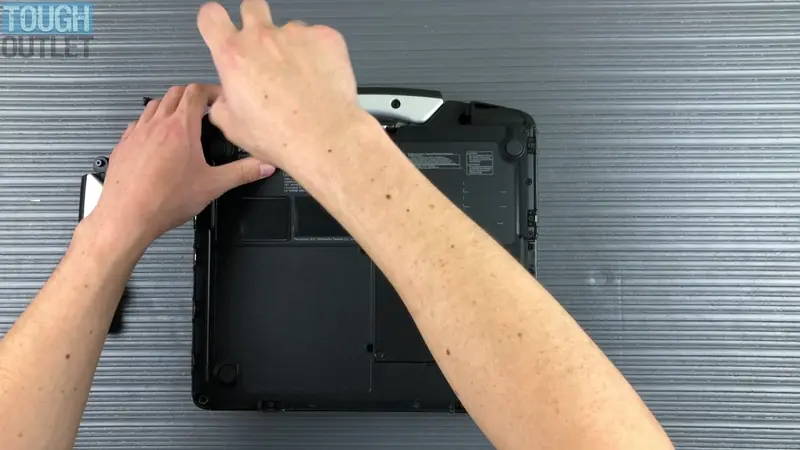
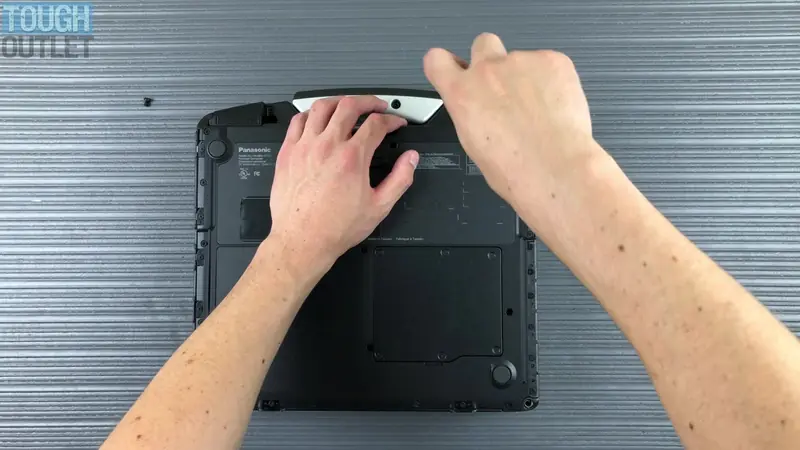
1Remove the screws holding the handle brackets
Use a Phillips-head screwdriver.
-
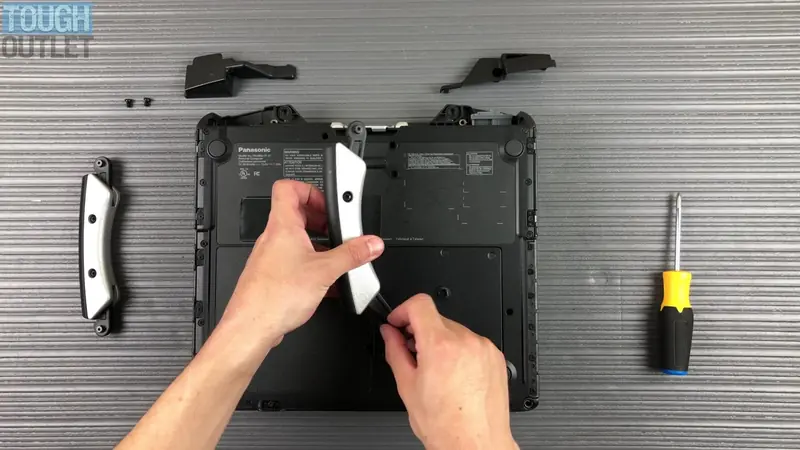
2Remove the handle and handle brackets
The handle and brackets will slide right out.
-
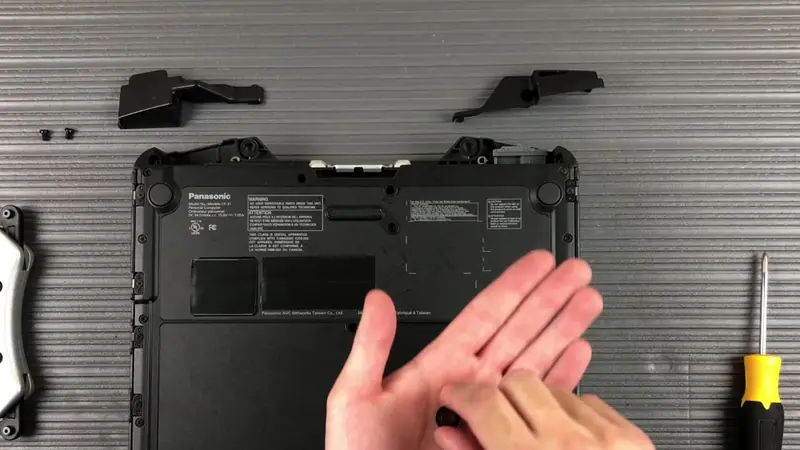
3Make sure you have 4 washers
They will be either on the handle or in the brackets. Do not lose them.
-
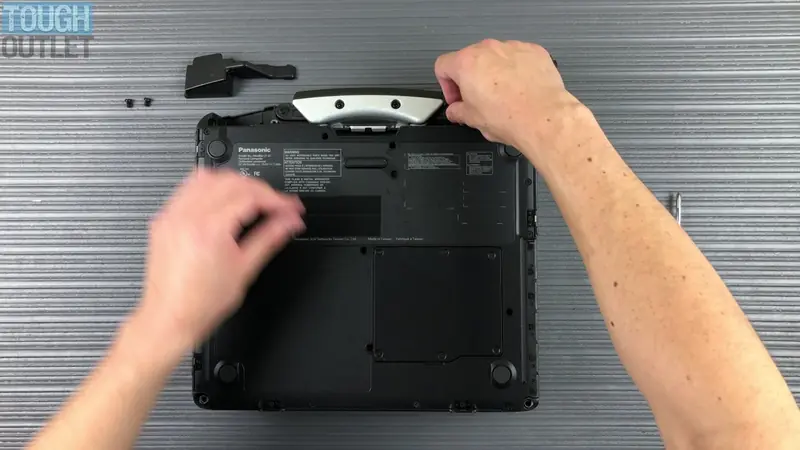
4Reinsert the handle
Make sure the 4 washers are on both sides of the handle.
-
5Reassemble your laptop
Reattach the handle brackets to finish.
Stuck, or not sure a part fits your unit? Ask our technicians; we support every Toughbook we sell. Need memory, a drive, a keyboard or a battery? Request a quick quote.