
Follow these 6 steps from our Toughbook technicians, with a photo of each one, or watch the video.
What you'll need
- Phillips-head screwdriver
- Gobi 5000 card
Before you start: shut down the computer, unplug the AC adapter and remove the battery.
Antenna cable colors vary by model and generation. Typically the cables are black and white, with the white cable going to "MAIN" and the black cable going to "AUX". If you get no signal or a weak one with your Gobi card, try switching the cables.
Watch the video
Install Gobi 5000
Steps
-

1Remove the screws on the GPS module
Use a Phillips-head screwdriver.
-

2Gently remove the GPS module
Do not force it, and do not damage the wires connected to the unit.
-
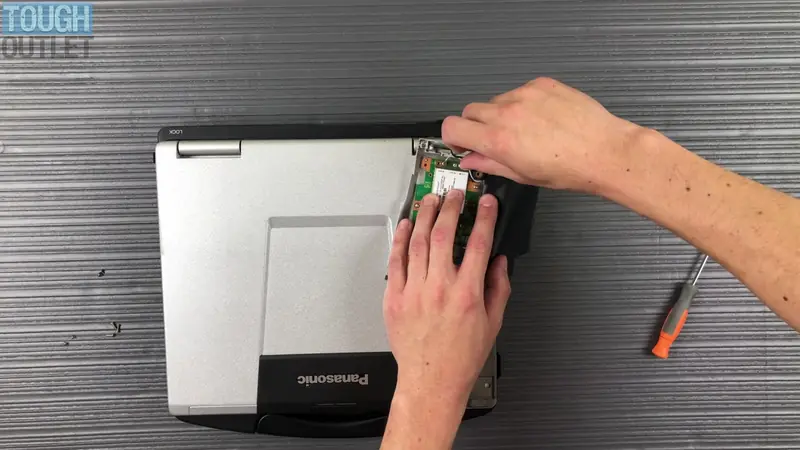
3Insert the black cable into "AUX" and the white cable into "MAIN"
Push the cables down until they snap firmly into place. Do not force them.
-

4Make sure the dipswitches are set correctly
1 = On, 2 = Off, 3 = On, 4 = Off. This may vary by model generation.
-
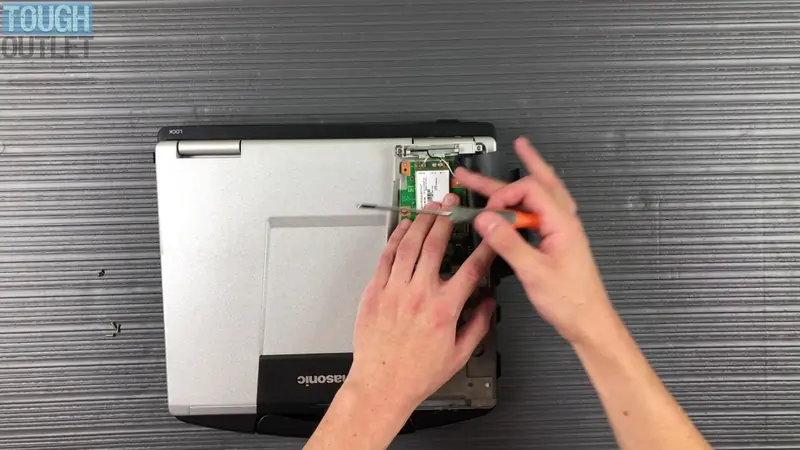
5Insert the Gobi card and its screws
Use the screws that came with the card, or any that fit.
-
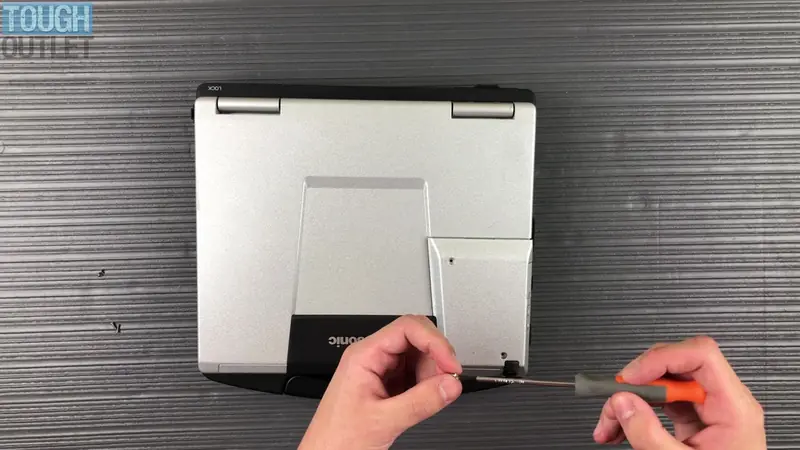
6Reattach the GPS module to finish
Use a Phillips-head screwdriver.
Stuck, or not sure a part fits your unit? Ask our technicians; we support every Toughbook we sell. Need memory, a drive, a keyboard or a battery? Request a quick quote.
More on the Panasonic Toughbook CF-74: Mobile Broadband Upgrades.