
Follow these 4 steps from our Toughbook technicians, with a photo of each one, or watch the video.
What you'll need
- Phillips-head screwdriver
Before you start: shut down the computer, unplug the AC adapter and remove the battery.
Watch the video
Install M.2 SSD
Steps
-
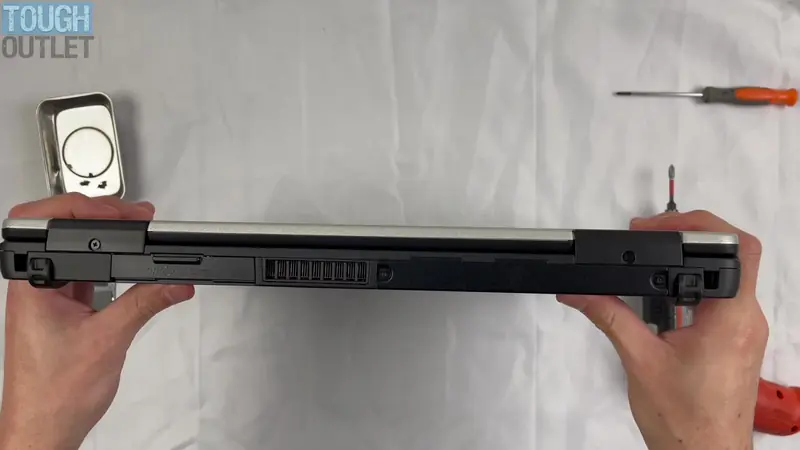
1Remove the screws from the bottom cover
Use a Phillips-head screwdriver. 7 screws in total.
-
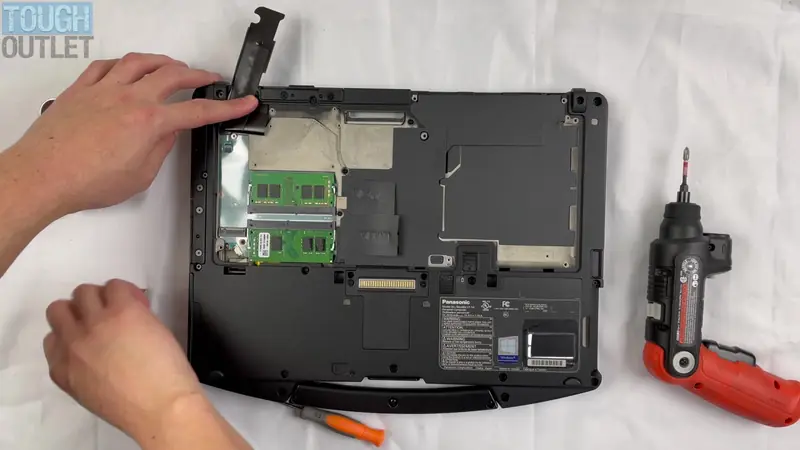
2Remove the bottom cover and carefully insert the M.2 drive
Lift the cover up to expose the M.2 slot.
-
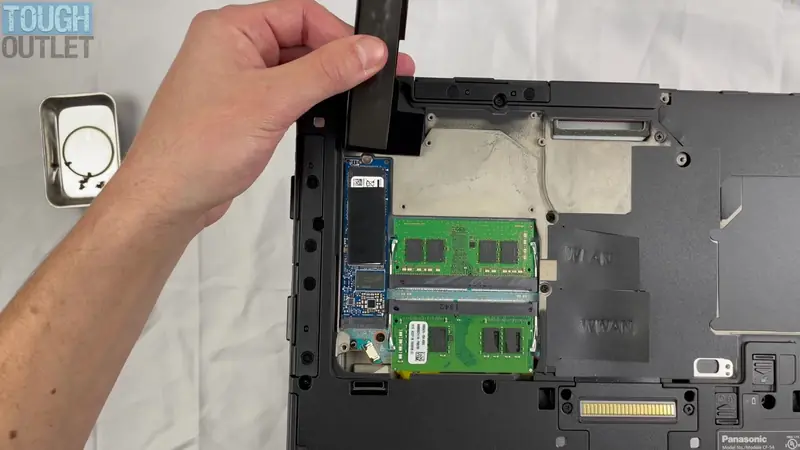
3Tighten the screw on top of the M.2 drive to secure it
Your drive should come with an extra screw. If not, use any small screw that fits.
-
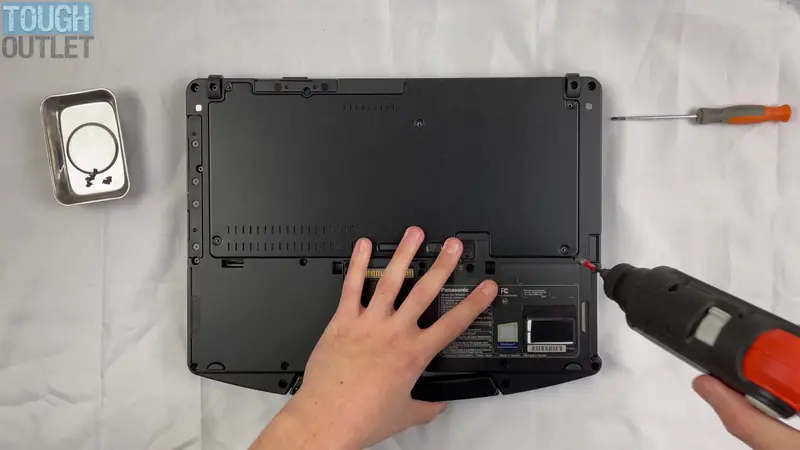
4Reattach the bottom cover
Use a Phillips-head screwdriver. 7 screws in total.
Stuck, or not sure a part fits your unit? Ask our technicians; we support every Toughbook we sell. Need memory, a drive, a keyboard or a battery? Request a quick quote.
More on the Panasonic Toughbook CF-54: SSD / Hard Drive.